

Відстеження даних у Shopify надзвичайно просте, особливо з налаштуванням подій клієнтів Shopify. Однак це абсолютний мінімум, який дає обмежене уявлення про поведінку в каталозі, кошику та оформленні замовлення. Щоб відстежувати всі важливі події електронної комерції та оптимізувати відстеження конверсій, вам потрібен Google Tag Manager (GTM).
Він дозволяє керувати всіма вашими тегами, включаючи Google Analytics 4 та Ads, з одного місця. Це спрощує оновлення та налаштування.
Отже, у цьому посібнику ви дізнаєтеся, як налаштувати Google Tag Manager у Shopify та протестувати його реалізацію. І все це без необхідності торкатися коду теми Shopify більше одного разу.
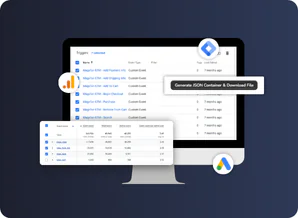
Ми також поділимося тим, як автоматично створювати всі важливі теги та тригери в GTM.
Зацікавлені? Почнемо з основ.
Що таке Google Tag Manager і навіщо він вам потрібен?
Якщо ви не проводите жодних розширених маркетингових кампаній або не використовуєте багатоінструментове відстеження, Basic інструменту Shopify GA4, ймовірно, достатньо.
Однак, якщо вам потрібні точніші дані, розширене відстеження електронної комерції (надсилання форми, повернення коштів, прокручування тощо), вам потрібно налаштувати GTM.
Що таке Google Tag Manager у Shopify?
Google Tag Manager (GTM) – це безкоштовна система керування тегами, яка дозволяє встановлювати, керувати та оновлювати маркетингові та аналітичні теги на вашому веб-сайті, не змінюючи тему Shopify щоразу.
Замість того, щоб керувати фрагментами коду для Google Analytics 4 (GA4), Google Ads та Facebook Pixel всередині теми Shopify, ви додаєте лише один фрагмент GTM . Одноразово.
Звідти ви можете редагувати, додавати або видаляти всі теги та тригери з ваших інформаційних панелей GTM. Це так просто.

На відміну від обмеженого налаштування Google Analytics 4 у Shopify, GTM дозволяє контролювати спрацьовування тегів, передавати динамічні цінності продукту або клієнта та робити багато іншого.
Це призводить до чистішого коду, легшого робочого процесу маркетингу та дотримання різних правил конфіденційності.
Менеджер тегів Google проти Google Analytics
Хоча вони часто використовуються разом, Менеджер тегів Google та Google Analytics — це не одне й те саме. Вони служать різним цілям. Важливо розуміти, що перед налаштуванням Менеджера тегів Google для Shopify...
Google Analytics збирає, вимірює та візуалізує дані про те, як люди використовують ваш веб-сайт. Це інструмент, який відстежує джерела трафіку, поведінку користувачів, продажі тощо.
Менеджер тегів Google, з іншого боку, — це система управління. Він нічого не відстежує сам по собі. Це просто дозволяє вам керувати всіма скриптами відстеження (тегами) в одному місці.
Іншими словами, GTM – це центр для інструментів вимірювання, тоді як Google Analytics – це інструмент, який аналізує дані, зібрані цими інструментами.
Як налаштувати Google Tag Manager у Shopify?
Крок 1: Створіть обліковий запис Google Tag Manager
Якщо ви ще цього не зробили, перейдіть до Google Tag Manager та налаштуйте новий обліковий запис.
Потім вкажіть Basic інформацію, таку як Назва облікового запису , Країна та Назва контейнера . Виберіть Веб як свою цільову платформу , і все готово.
Відразу після того, як ви погодитесь з умовами використання, ви побачите спливаюче вікно з двома фрагментами коду, які потрібно вбудувати у вашу тему.
Крок 2: Додайте код GTM до теми Shopify
Якщо ви випадково закрили спливаюче вікно або вже створили обліковий запис GTM раніше, просто натисніть на свій публічний ідентифікатор GTM (GTM-XXXXXX) або перейдіть до розділу Адміністратор > Встановити Google Tag Manager , щоб знайти фрагменти коду.
Потім перейдіть до розділу Канали продажів > Інтернет-магазин > Теми в адміністративній панелі Shopify та натисніть на три крапки, щоб знайти опцію коду Редагувати .
Опинившись у файлах теми, перейдіть до файлу theme.liquid та вставте перший фрагмент коду ( ) з вашого облікового запису GTM одразу під метатегами.
Потім прокрутіть униз до тегу body та вставте другий фрагмент коду ( ) під ним. Не забудьте зберегти зміни та перейти до наступного кроку.
Примітка: використовуйте комбінацію Crtl + F, щоб знайти теги та
у коді, оскільки їх розташування може відрізнятися залежно від вашого веб-сайту.Просто переконайтеся, що ви вставили обидва фрагменти якомога вище у відповідні теги. Це гарантує, що скрипт GTM працюватиме якомога швидше.
Крок 3: Додайте код GTM на сторінку "Дякую" Shopify
Після додавання скрипта GTM до вашої теми Shopify, Google Tag Manager вважається встановленим. Однак, на жаль, він не охоплює весь ваш веб-сайт. Зокрема, він не охоплює сторінки оформлення замовлення або сторінки подяки.
Фактично, лише користувачі Shopify Plus мають доступ до файлу checkout.liquid для відстеження подій оформлення замовлення. Але ви все ще можете відстежувати покупку на сторінці подяки.
Для цього перейдіть до адміністратора Shopify > Налаштування > Перевірте та знайдіть поле Додаткові скрипти у розділі Після покупки . Вставте туди обидва скрипти GTM
та , один під одним. Потім зберегти налаштування, і все.
Крок 4: Перевірте встановлення
Нарешті, вам потрібно перевірте, чи працює Менеджер тегів Google , як тільки ви додасте ці скрипти. Просто поверніться до свого Робочий простір GTM та натисніть Попередній перегляд .
. Ви увійдете в Tag Assistant, , який попросить вас вставити URL-адресу вашого веб-сайту для налагодження. Потім натисніть Підключитися .
Примітка: . Якщо ваш магазин захищено паролем, Попередній перегляд може не працювати. Спробуйте скасувати пароль для тестування або знову підключіться до Tag Assistant.
Ваш веб-сайт відкриється в новому вікні зі спливаючим вікном Tag Assistant. Якщо ви побачите повідомлення Tag Assistant підключено , значить, ви правильно встановили Google Tag Manager у Shopify.
Повернувшись на вкладку Tag Assistant, ви повинні бачити, як скрипт GTM запускається щоразу, коли ви переходите на нову сторінку у вашому магазині.
Примітка: якщо ви вже налаштували теги GTM, ви повинні бачити їх запуск на цій вкладці. Однак, якщо ви щойно встановили GTM у Shopify, нічого страшного, якщо ви не бачите тегів. Головне, що ви підключили Google Tag Manager до свого магазину.
Крім того, ви можете скористатися інструментами розробки браузера, щоб переконатися, що скрипт GTM правильно запускається безпосередньо у вашому коді.
Після того, як ви проведете тестування та підтвердите, що ви правильно налаштували Shopify Google Tag Manager, просто натисніть Надіслати у робочій області GTM. Назвіть першу версію (якщо це справді перша) щось на кшталт «Початкове налаштування» та почніть створювати свої теги.
Налаштування тегів, тригерів та змінних
Підключення GTM до Shopify не таке вже й складне. Справжній виклик полягає в тому, щоб правильні теги спрацьовували у потрібний час та передавалися правильна інформація про ваш магазин.
Це може здатися забагато. Але ми розберемо основи та покажемо вам, як налаштувати їх автоматично.
Основи тегів, тригерів та змінних GTM
GTM виконує всю важку роботу із запуску та відстеження цінних даних про продуктивність вашого магазину. Однак він все одно повинен знати, що і коли відстежувати.
Теги (що ви хочете запускати) — це, по суті, фрагменти коду, які надсилають дані до сторонніх інструментів. Ці теги можуть бути:
-
Тег Google Analytics 4 — для збору даних про поведінку користувачів та надсилання їх до GA4.
-
Тег відстеження конверсій Google Ads — для вимірювання рентабельності інвестицій (ROI) ваших рекламних кампаній.
-
Тег Facebook Pixel — для оптимізації рекламних кампаній у Facebook.
-
Тег Pinterest, TikTok, LinkedIn — для оптимізації інших рекламних кампаній.
Тег GA4 у менеджері тегів Google
Порада професіонала: найкраще підключати GA4 до Shopify через GTM (через теги), а не через події Shopify, оскільки ви отримуєте більше контролю над переглядами сторінок та подіями за допомогою тригерів.
Тригери (коли ви хочете, щоб тег спрацьовував) — визначте умови, за яких ви хочете, щоб певні теги спрацьовували. Деякі приклади включають:
- Перегляд сторінки — запускається, щойно клієнт відвідує певну сторінку.
- Додати до кошика — запускається, коли хтось натискає кнопку «Додати до кошика».
- Завантаження файлу — запускається, коли хтось завантажує безкоштовний файл з вашого магазину.
Тригер GTM для «Додати до кошика»
Змінні (які дані ви хочете передавати стороннім обробникам даних) — надають динамічну інформацію про сторінки, продукти та клієнтів. Можуть бути:
- Вбудовані змінні GTM — URL-адреса та шлях сторінки, реферер тощо
- Змінні рівня даних — такі як ідентифікатор продукту, дохід, ідентифікатор транзакції тощо
- Користувацькі змінні JavaScript або DOM
Приклад змінної ідентифікатора транзакції в GTM
Що таке рівень даних?
Після додавання скриптів GTM до файлу theme.liquid та створення всіх цих тегів і тригерів ви все одно не отримаєте жодних даних у GA4, Google Ads або інших інструментах відстеження. Чому?
Тому що GTM не має жодного контексту про те, що відбувається у вашому магазині. Хіба що ви повідомите йому про це через рівень даних.
Рівень даних – це JavaScript зі структурованими даними про ваші продукти, дії в кошику тощо. Саме тут GTM отримує інформацію про те, коли відбувається додавання до кошика, покупка або початок оформлення замовлення. .
На жаль, Shopify не пропонує рівень даних електронної комерції за замовчуванням. Тому вам потрібно впровадити його вручну у свою тему за допомогою розробника або спеціального додатка.
Автоматичне налаштування тегів GTM та рівня даних
Налаштування рівня даних – це останній крок у налаштуванні Google Tag Manager для Shopify. Це також крок, коли все стає заплутаним, особливо для нетехнічних спеціалістів. Але у нас є рішення — Magefan Сервер GTM для Shopify .
Це інструмент, який генерує всі теги, тригери та змінні для вас у вашому GTM. Вам не потрібно нічого робити , але вставте кілька ідентифікаторів відстеження з ваших облікових записів GTM, GA4 та Google Ads. Ось і все.
Налаштування GTM через додаток Magefan GTM
Найкраще те, що додаток Magefan GTM допомагає вам налаштувати відстеження на стороні сервера в Shopify . Це дозволяє уникнути блокувальників реклами та обмежень щодо файлів cookie. Тепер ви можете відстежувати всі події електронної комерції, не втрачаючи цінних даних.
Усі важливі події електронної комерції налаштовуються автоматично за допомогою Magefan GTM
Важливо: Якщо ви вирішите використовувати додаток Magefan GTM, обов’язково видаліть усі скрипти відстеження GTM з файлу theme.liquid, щоб уникнути дублювання подій.
Як ми вже згадували раніше, Менеджер тегів та Google Analytics – це два абсолютно різні інструменти, які допомагають вам з аналітикою вашого магазину.
Хоча налаштування Google Analytics у Shopify добре працює на початку, GTM однозначно виграє в довгостроковій перспективі.
Це допомагає масштабувати відстеження даних, спрощуючи управління процесом. Завдяки правильному налаштуванню та впровадженню ви можете збирати кращі дані та приймати розумніші маркетингові рішення.
Найчастіші запитання
Куди мені розмістити код Менеджера тегів Google у Shopify?
Чи кращий Google Tag Manager, ніж додавання тегів вручну в Shopify?
Чи потрібен мені додаток GTM для Shopify, чи я можу зробити це вручну?
Чи уповільнює GTM роботу мого магазину Shopify?
Чи можу я використовувати GTM на стороні сервера з Shopify?


 Підтримайте